Other Features Guide
We've compiled all of Babyfolio's various additional features in one place for you.
What is Cheese?
Cheese is a unique point system used within Babyfolio! 🧀
1 Cheese = 10 KRW in value.
🎯 What you can do with Cheese
🛍️ Payment for custom goods sold in Babyfolio, such as photo prints and photo books
🖼️ Downloading all photos
When ordering goods, you can select your available Cheese on the payment screen to pay for part of the total amount.
Please note that Cheese can be used starting from a minimum of 100 Cheese 😊
💰 How can I get Cheese?
Cheese can be obtained by purchasing through in-app payments or earning for free through Cheese Family.
How to purchase
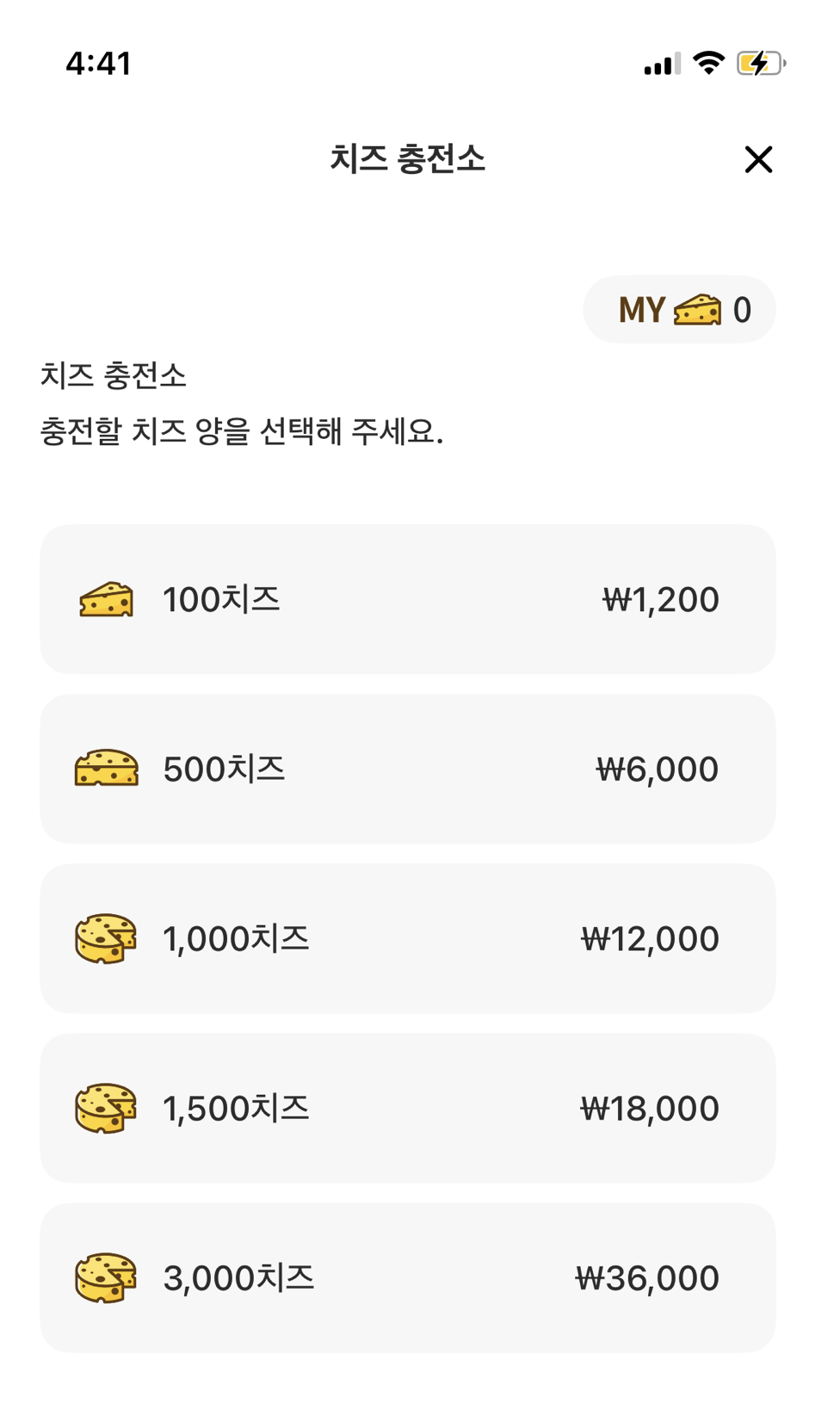
Once you pick the item you want, you will be directed to the Play Store/App Store to complete the payment.
How to earn for free
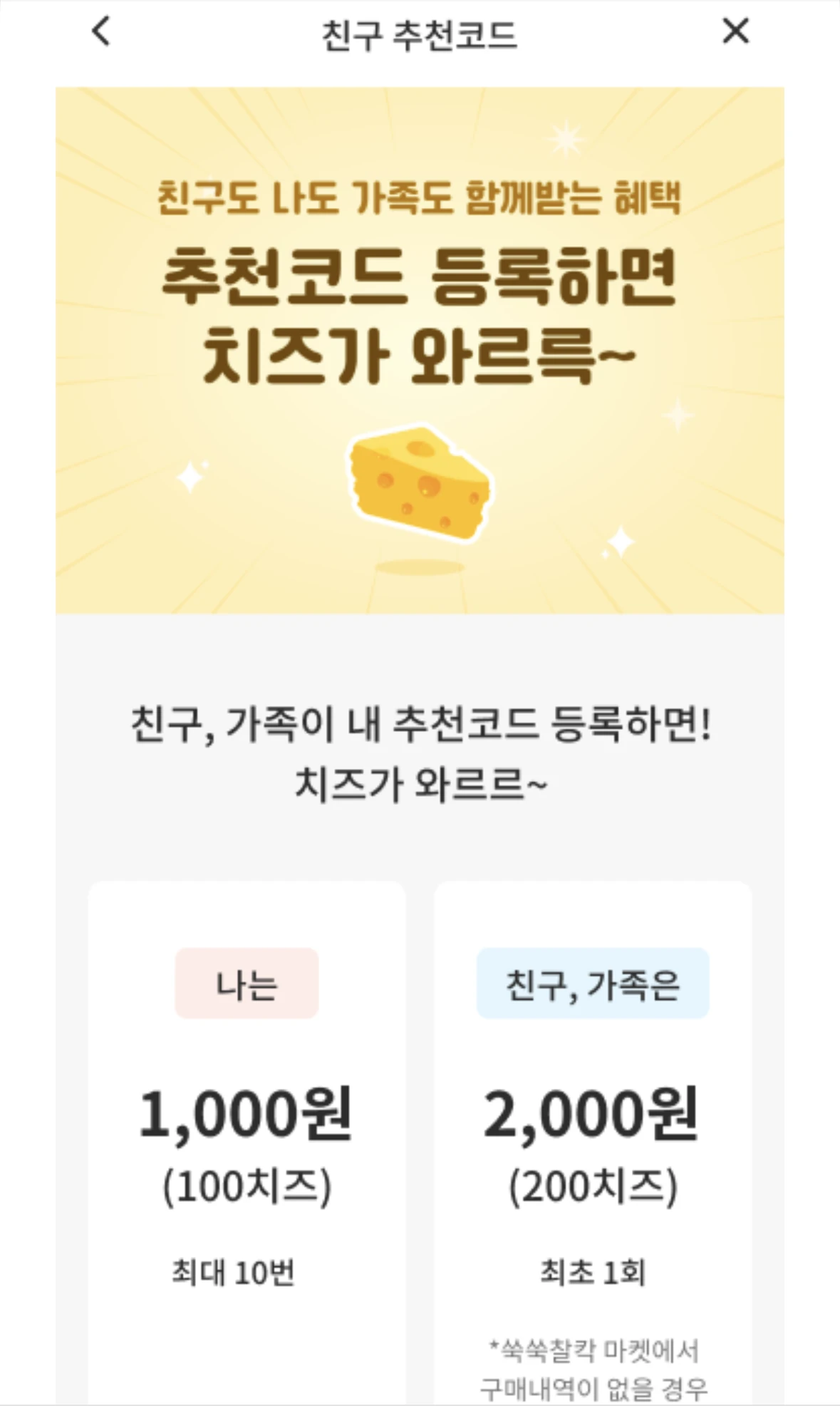
Invite a friend! When your friend enters your referral code, both you and your friend will receive Cheese.
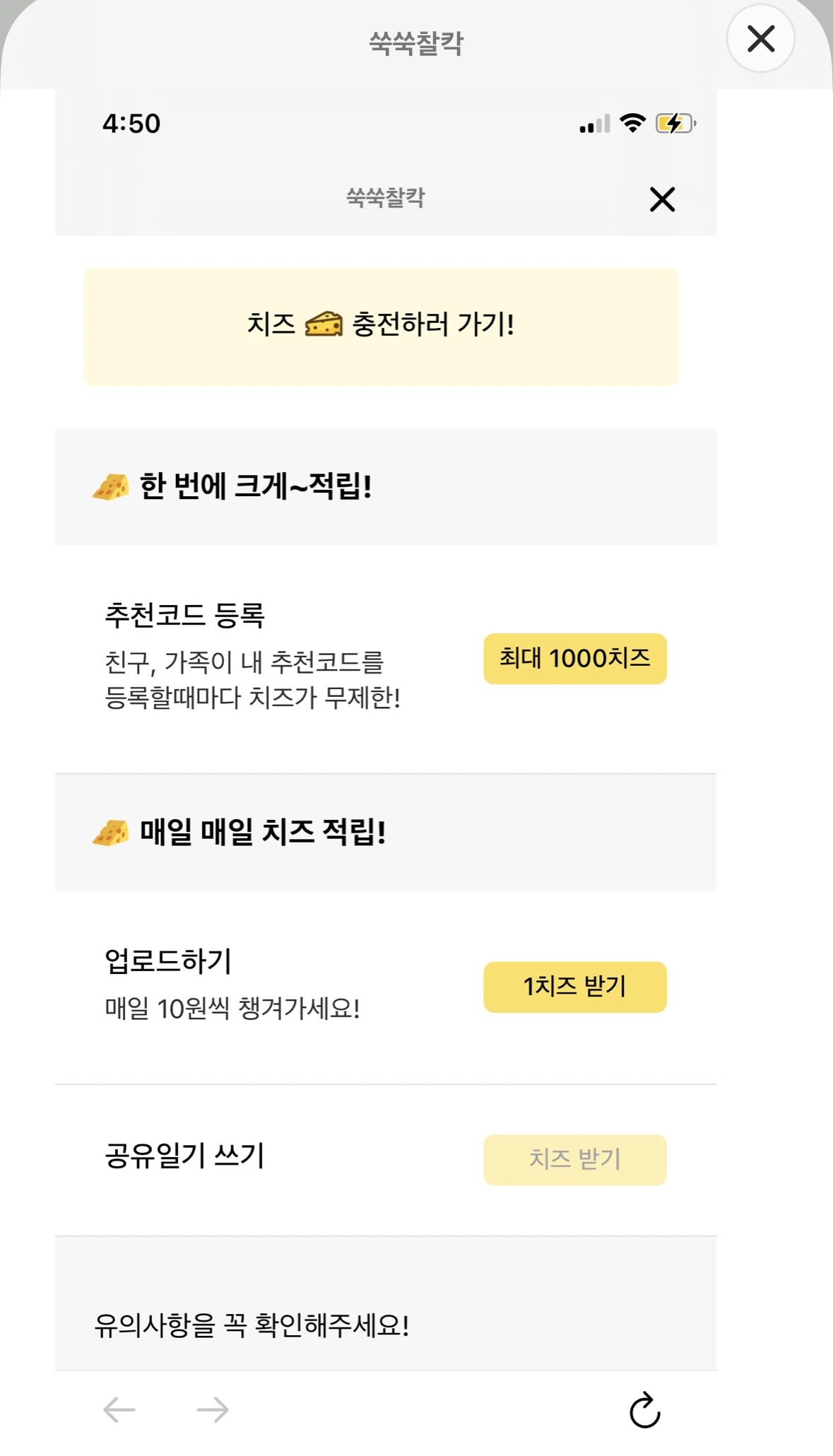
You can also earn Cheese by completing specific missions, such as uploading photos or writing shared diaries!
🛍️ Which products can I use Cheese for?
Cheese can be used for custom goods sold within the Babyfolio app.
When ordering goods like photo prints or photo books, simply select the Cheese option on the payment screen to apply your points toward the cost.
Prices and product details may vary by sale period, so please check the Goods/Photobook menu in the app ✨
⏰ Cheese Expiration Date
Purchased Cheese: 60 months
Cheese earned via Cheese Family: 60 days
Event-awarded Cheese: Subject to specific event terms
Please check the details of each event.
⚠️ Cheese is automatically used in order of the earliest expiration date!
💳 What if my purchased Cheese isn't showing up?
Please check for app updates and try restarting the app.
If the Cheese still doesn't appear, please contact our Customer Center!
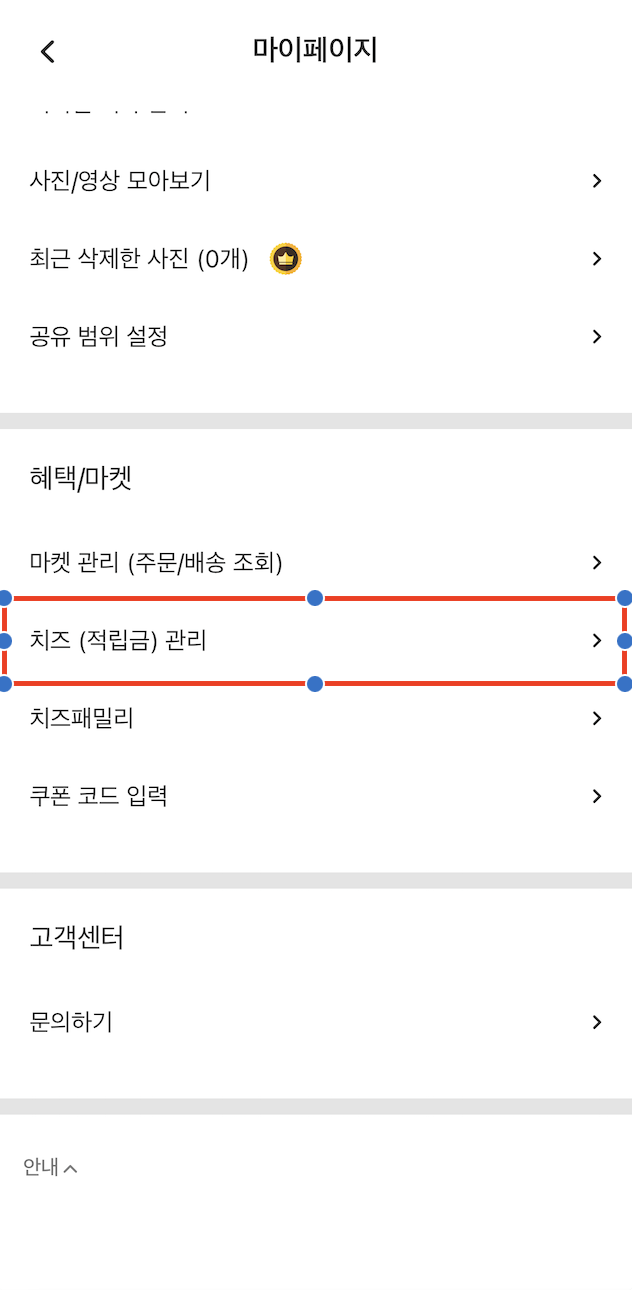
You can check your Cheese balance in My Page > Manage Cheese (Points)!
Sharing Diary Guide
On Babyfolio, you can record precious moments with your baby in a diary! 📝
👨👩👧 Can I share my diary with my family? Currently, we do not provide a feature to share diaries directly with family members. Public diaries are only shared with users in the same role.
Public diary written by Mom → Shared with other moms
Public diary written by Dad → Shared with other dads
Public diary written by Grandma → Shared with other grandmas
🔒 Want to keep your diary private? You can set the visibility using the 'Public / Private' button at the bottom when writing a diary entry. You can also change the visibility of previously written entries by editing them.
👀 I see diaries of other babies that I didn't write The 'Public Diary' feature allows you to see public entries written by other users with the same role. Rest assured, diaries set to private will never be shown to others 😊
Babyfolio Video Guide
Turn your baby's precious moments into beautiful videos! 🎬
📍 Go to Studio at the bottom of the screen → Tap Babyfolio Video at the top to start creating.
🎥 Types of Babyfolio Videos
1. Premium Video (Free) You can create these for free after watching an ad. They are automatically generated using your best photos, and you'll need 35 photos to make one.
2. Monthly Video (Free) A video to record your baby's growth every month. These become available at the end of each month, and you can create them as long as you have at least 20 photos. You can customize them your way with various templates, BGM, and fonts! 🎨
3. Anniversary Video (100th Day, 1st Birthday) (Paid) These are exclusive products for subscribers.
📐 1st Birthday Video Specs
File Size: Varies depending on selected photos, typically 40MB – 80MB
Resolution: 16:9 (1920 × 720)
🔔 Want to be notified about Monthly Videos? Go to My Page → Settings → Notification Settings → Turn on Marketing Notifications! You'll receive a push notification when your free Monthly Video is ready to be made.
📸 How to Upload Photos for Your Birth Video Just upload your photos to create a lovely birth video!
Step 1 Tap the + button on the home screen Step 2 Tap Upload or Premium Upload Step 3 Select the photos you want to upload Step 4 Choose which family members to share with Step 5 Add a note/tag and tap Done!
💡 Adding notes and tags makes it much easier to search for your memories later!